Photon Cart
Conversion cart drawer for Shopify
Photon Cart is a Shopify cart drawer app with 18 optional modules, including upsells, BOGO, and a free shipping goal bar. Photon Apps, a studio of Simplileap Digital LLP in Bengaluru, is building Photon Cart for merchants who want those jobs in one drawer instead of stacked apps. Photon Cart is in public preview and is not listed on the Shopify App Store yet. Request access or book a demo, then enable the modules you need after install. A free plan is planned for preview merchants.
How do I install Photon Cart?
Photon Cart is not on the Shopify App Store yet. Follow these steps to request access and enable modules after we send a custom-app install.
Request access
Photon Cart is in public preview and is not on the Shopify App Store yet. Email hello@photonapps.com or use the contact form to request access.
Receive install instructions
After we confirm access, we send steps to install Photon Cart as a Shopify custom app on your store.
Install on your Shopify store
Follow the custom-app install flow in Shopify admin. Use a development store first if you want to test modules before a live theme.
Enable modules
Open Photon Cart in Shopify admin and turn on only the modules you need, such as upsells, BOGO, or the free shipping goal bar.
Preview on the storefront
Open the cart drawer on your theme, check mobile layout, and match colors so the drawer reads as part of the storefront.
Photon Cart modules at a glance
Photon Cart is 18 modules in one cart drawer. Turn on only the ones you need. Each name links to its full write-up below.
| Module | Job | Outcome |
|---|---|---|
| Announcement Bar | Show promos, shipping updates, or policy notes in a bar inside the drawer. Rotate several messages, link each one to a collection or product, and pick a look that matches your brand. | Campaign ready |
| Free Shipping Goal | Show shoppers how close they are to free shipping with a live progress bar in the drawer. Set one threshold, choose where it applies, and celebrate when they unlock it. | AOV driver |
| Tiered Gift Bar | Reward bigger baskets with free gifts. Set spend milestones, show progress in the drawer, and let shoppers claim or choose their gift as each tier unlocks. | Flexible rewards |
| 1-Click Upsell Carousel | Recommend products inside the drawer and let shoppers add them with a single tap. Use Shopify's recommendations or hand-pick your own, so people never have to leave the cart. | One tap add |
| Cross-Sell Rules | Show complementary products based on what is already in the cart. Pick the trigger products, choose what to suggest, and the drawer does the matching. | Smart targeting |
| Frequently Bought Together | Offer a pre-checked bundle built around a product in the cart. Shoppers see the combined total and add everything they choose with one tap, in the drawer or on the product page. | Bundle sales |
| Buy X Get Y | Run buy X get Y offers inside the cart, with no coupon codes. Qualifying rewards are discounted automatically, and a progress message shows shoppers how close they are to unlocking them. | No codes needed |
| Countdown Timer | Count down to the end of a real sale inside the cart drawer. Set the sale dates once and every shopper sees the same honest deadline. | Timed offers |
| Discount Codes & Vouchers | Let shoppers enter a promo code right in the drawer. Applied codes show as chips they can remove, and a savings line makes the discount clear before checkout. | In-cart apply |
| Order Notes & Instructions | Let shoppers leave a gift message or delivery instructions right in the drawer. The note saves automatically and travels with the order to your fulfillment team. | Clear instructions |
| Gift Wrap | Let shoppers add gift wrapping from the drawer and leave a personalized gift tag. The fee sits beside the toggle, and the message saves with the cart. | Premium touch |
| Shipping Protection | Let shoppers add package protection from the drawer. The fee shows beside the toggle, and it is added only when they opt in. | Checkout add-on |
| Birthday Collector | Ask for a birthday in the drawer, above checkout. The date is saved as a cart attribute and shown in the order's additional details. | Retention data |
| Survey Widget | Ask one question in the drawer, above the subtotal. Shoppers answer with one tap, and the choice is saved as a cart attribute. | Voice of customer |
| Payment & Trust Badges | Show reassurance seals and accepted payment logos in the drawer. Place each group above or below the checkout button. | Confidence |
| Terms & Conditions Checkbox | Ask shoppers to agree to your terms, with a link to your policy, before they can check out from the cart. | Explicit consent |
| Custom HTML / CSS | Add your own HTML block in the drawer, plus optional CSS for the storefront. Placeholders fill in cart and customer details, and scripts are removed. | Your brand |
| Sticky Cart Controls | A floating button opens the cart from any page, and a product bar keeps Add within reach while shoppers scroll. | Always reachable |
All modules
Eighteen optional blocks. Jump to a module or scroll for how each one works. Cart A/B testing is covered after the modules.
- Announcement Bar
- Free Shipping Goal
- Tiered Gift Bar
- 1-Click Upsell Carousel
- Cross-Sell Rules
- Frequently Bought Together
- Buy X Get Y
- Countdown Timer
- Discount Codes & Vouchers
- Order Notes & Instructions
- Gift Wrap
- Shipping Protection
- Birthday Collector
- Survey Widget
- Payment & Trust Badges
- Terms & Conditions Checkbox
- Custom HTML / CSS
- Sticky Cart Controls
Your cart 2 items
Photon Cart module
Campaign readyAnnouncement Bar
Photon Cart Announcement Bar is an optional module in the cart drawer. Show promos, shipping updates, or policy notes in a bar inside the drawer. Rotate several messages, link each one to a collection or product, and pick a look that matches your brand.
Add as many messages as you need and let them auto-rotate, or switch to a scrolling marquee. Each message can have its own emoji, link, and call-to-action label, so one bar can carry a holiday cutoff, a free shipping note, and a sale link.
Choose from four templates (Classic, Button CTA, Marquee, and Gradient with a badge), then fine-tune colors, font size, weight, and alignment so the bar matches your theme.
Decide when it appears: always, only when the cart is empty, only when it has items, or hide it once free shipping unlocks. You can also let shoppers dismiss it for the session or for good, and place it below the header or above the footer.
Your cart 1 item
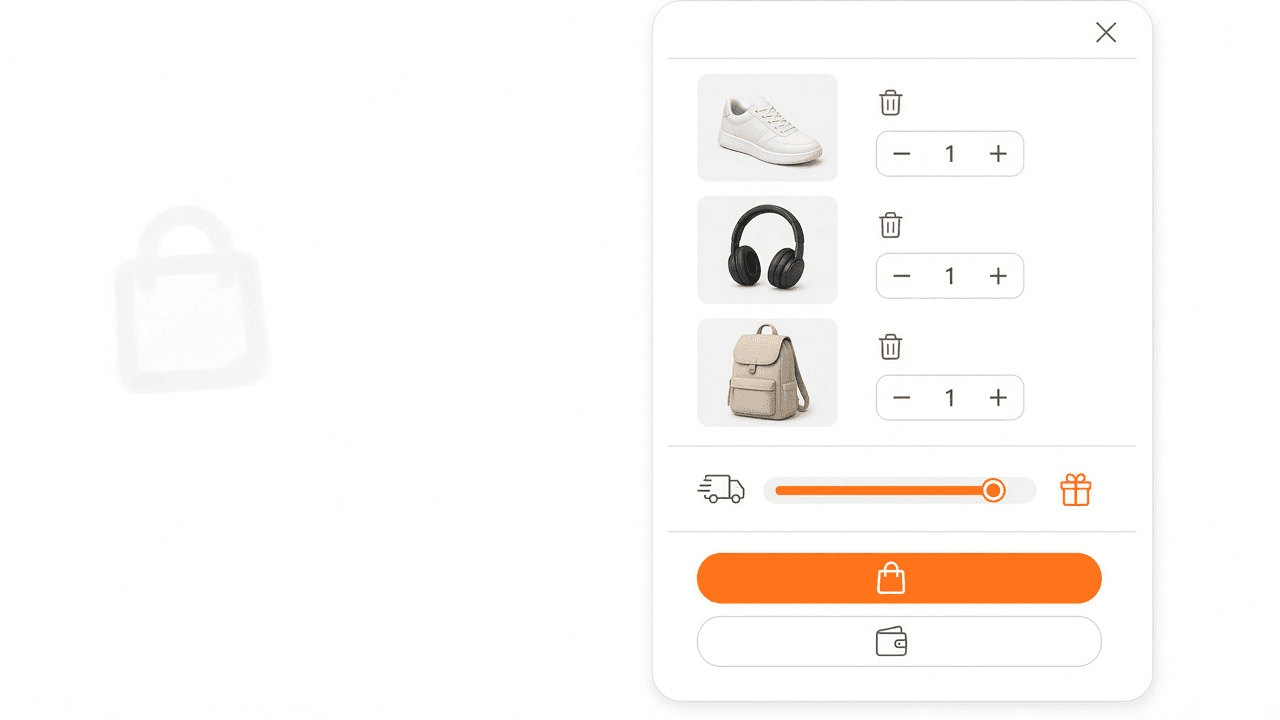
You are just $40.00 USD away from Free Shipping!
Photon Cart module
AOV driverFree Shipping Goal
Photon Cart Free Shipping Goal is an optional module in the cart drawer. Show shoppers how close they are to free shipping with a live progress bar in the drawer. Set one threshold, choose where it applies, and celebrate when they unlock it.
Set one threshold in your store's currency and it converts automatically for shoppers paying in another. Choose every country you ship to or only specific countries, and optionally make only your cheapest rate free so express and local delivery keep their price.
Write three messages for the bar: one before shoppers start, one while they are getting close, and one when they reach the goal. Pick from four templates and a truck, gift, or star icon, and add confetti when the goal unlocks.
The module creates the matching Shopify free shipping discount, so checkout honors what the bar promised. Free gifts, gift wrap, and shipping protection do not count toward the goal, which keeps the bar honest.
Your cart 4 items
You unlocked a free gift!
Photon Cart module
Flexible rewardsTiered Gift Bar
Photon Cart Tiered Gift Bar is an optional module in the cart drawer. Reward bigger baskets with free gifts. Set spend milestones, show progress in the drawer, and let shoppers claim or choose their gift as each tier unlocks.
Add up to five tiers, each with its own spend threshold, label, icon, and up to five gift products. Shoppers see a progress bar with a milestone for every tier, so they know exactly what unlocks next instead of finding out at checkout.
Choose whether a gift is added automatically when its tier unlocks or whether the shopper picks from that tier's gifts in the drawer. Gifts appear as normal line items marked Free, and a milestone can hide itself when its gift runs out of stock.
Write three messages for the bar: progress toward the next tier, a tier unlocked, and every tier unlocked. Match the bar colors to your brand and add confetti each time a new gift unlocks. Tiers work well for clearing slow movers while rewarding high baskets.
Your cart 1 item
You may also like
Photon Cart module
One tap add1-Click Upsell Carousel
Photon Cart 1-Click Upsell Carousel is an optional module in the cart drawer. Recommend products inside the drawer and let shoppers add them with a single tap. Use Shopify's recommendations or hand-pick your own, so people never have to leave the cart.
Choose where suggestions come from: Shopify's recommendations based on what is already in the cart, or up to 12 products you pick yourself, shown in the order you choose. Hide products that are already in the cart and variants that are out of stock so every card can be bought.
Pick the layout that fits your drawer: a swipeable carousel, a stacked list, or a two-column grid. Set the heading, how many products show, whether the compare-at price appears, and whether the Add button is a solid pill or a minimal outline.
Each card shows the product image, title, and price, and one tap on Add puts the item straight into the cart without sending shoppers to a product page. Upsells are optional add-ons, so shoppers stay in control of the basket.
Your cart 1 item
Pairs well with your cart
Photon Cart module
Smart targetingCross-Sell Rules
Photon Cart Cross-Sell Rules is an optional module in the cart drawer. Show complementary products based on what is already in the cart. Pick the trigger products, choose what to suggest, and the drawer does the matching.
Create up to 20 rules. Each rule watches for any of up to three trigger products and shows up to 12 products you choose. For example, when a blue dial watch is in the cart, suggest a leather strap and a travel case.
Matching products appear in their own section of the drawer under a heading you write, and shoppers add them with one click. Set how many products show at once so the drawer stays easy to scan on small screens.
Rules follow the cart as items are added or removed, so the suggestions stay relevant. Use the upsell carousel for broad recommendations and cross-sell rules for pairings you want to control product by product.
Frequently bought together
Bundle total
$210.00 USD
3 items
Photon Cart module
Bundle salesFrequently Bought Together
Photon Cart Frequently Bought Together is an optional module in the cart drawer. Offer a pre-checked bundle built around a product in the cart. Shoppers see the combined total and add everything they choose with one tap, in the drawer or on the product page.
Build up to 50 bundles, each with an anchor product and up to three products to bundle with it. You can also let Shopify recommendations fill the set, or combine the two: your manual bundles first, topped up by Shopify recommendations.
Show the bundle in the cart drawer, on product pages, or both, under a heading you write. Every item starts checked, the product already in the cart is tagged "In cart", and shoppers can untick anything they do not want.
The bundle total updates as items are ticked and unticked, and a single "Add selected to cart" button adds the chosen products together. Bundles raise units per order and pair well with a free shipping goal when they push the basket over the threshold.
Your cart 1 item
Buy 1, get 1 free — Add 1 more to unlock your gift
Your cart 2 items
Photon Cart module
No codes neededBuy X Get Y
Photon Cart Buy X Get Y is an optional module in the cart drawer. Run buy X get Y offers inside the cart, with no coupon codes. Qualifying rewards are discounted automatically, and a progress message shows shoppers how close they are to unlocking them.
Create up to 10 offers. Each one sets the products that qualify, how many to buy (X), which variant is the reward, and how many rewards to give (Y), plus a cap on rewards per order. Write a heading for each offer that matches the deal, such as "Buy 2, get 1 at 50% off".
Set the discount on the reward. At 100% the free item is added to the cart automatically and marked FREE with your offer label. Below 100% shoppers see the reward with its price and add it themselves. Every offer is a native Shopify automatic discount, so checkout applies exactly what the drawer showed.
Turn on progress messages to tell shoppers what is missing, such as "Add 1 more to unlock your gift", right above their items. Seeing the benefit before payment cuts down on "where is my free item" questions.
Your cart 1 item
Sale ends in 11:47:35
Photon Cart module
Timed offersCountdown Timer
Photon Cart Countdown Timer is an optional module in the cart drawer. Count down to the end of a real sale inside the cart drawer. Set the sale dates once and every shopper sees the same honest deadline.
Set when the sale ends, and optionally when it starts, in your store's timezone. Before the start shoppers see "Starts in". Every shopper gets the same deadline, and the timer never restarts per visit, so the urgency always reflects a real sale.
Choose digit blocks, a draining bar, or a ring. Write the banner text with a timer placeholder, add a fire, stopwatch, or hourglass icon, and match the colors, size, and alignment to your brand. The timer can change color as the final minutes approach.
When the sale ends, the banner shows a message you write or hides itself. That keeps the drawer accurate after the promotion without a theme change, and you can move the banner anywhere in the cart builder.
Your cart 1 item
Discount code
Photon Cart module
In-cart applyDiscount Codes & Vouchers
Photon Cart Discount Codes & Vouchers is an optional module in the cart drawer. Let shoppers enter a promo code right in the drawer. Applied codes show as chips they can remove, and a savings line makes the discount clear before checkout.
Add a promo field to the drawer with your own label, placeholder, and button text, as a solid or outline button. Start it open or collapsed, and move it wherever you want in the cart builder.
Shoppers type a code and tap Apply. The code is applied through Shopify and appears as a chip they can remove with one tap. A URL parameter prefills the code, so campaign links arrive with the discount ready.
A savings line under the subtotal shows how much the shopper is saving. Codes are your regular Shopify discount codes, so the combinations and rules you already use keep working.
Your cart 1 item
Order Special Instructions / Gift Note
250 remaining
Photon Cart module
Clear instructionsOrder Notes & Instructions
Photon Cart Order Notes & Instructions is an optional module in the cart drawer. Let shoppers leave a gift message or delivery instructions right in the drawer. The note saves automatically and travels with the order to your fulfillment team.
Write your own label and placeholder, and show the field as a collapsible accordion that starts open or closed, or keep it always visible. Pick a subtle gray, white outline, or brand-colored surface to fit your drawer.
Set a character limit with a live "remaining" counter so notes stay short and readable. You can also make the note required, which holds shoppers at checkout until they have filled it in.
Notes save a moment after the shopper stops typing, so there is no update button to forget. They are written to the standard Shopify order note, or to a cart attribute you name when the order note is reserved for other tools.
Your cart 1 item
Signature matte box, satin ribbon & note card
Photon Cart module
Premium touchGift Wrap
Photon Cart Gift Wrap is an optional module in the cart drawer. Let shoppers add gift wrapping from the drawer and leave a personalized gift tag. The fee sits beside the toggle, and the message saves with the cart.
Write your own toggle title and description, and show the fee as a pill next to the title or offer wrap as a free perk. Choose a subtle card, a checkbox row, or an expandable slot, plus a ribbon, box, or minimal icon.
Turn on a gift tag message with your own placeholder and a character limit. A live counter shows how many characters are left, and you can mark the order as a gift so packing slips and gift receipts hide prices from the recipient.
A paid fee is stored as a hidden Shopify product and added as a line item when the toggle is on. Set the price and whether tax is included. A free perk records the choice as a cart attribute instead of charging a fee.
Your cart 1 item
Photon Cart module
Checkout add-onShipping Protection
Photon Cart Shipping Protection is an optional module in the cart drawer. Let shoppers add package protection from the drawer. The fee shows beside the toggle, and it is added only when they opt in.
Write your own headline and description, and show the fee in a bold accent, a subdued style, or hide it. Place the block in the sticky footer or inline with the items, on a subtle gray, white outline, or brand-soft surface.
Choose a shield, lock, or umbrella icon, or show none. The toggle starts off, so shoppers turn protection on themselves and the fee is never pre-selected.
The fee is stored as a hidden Shopify product and added as a line item when the toggle is on. Set the price, whether tax is charged, and whether the fee drops when the cart is cleared.
Your cart 1 item
Your Birthday (Get a special gift on your day!)
We will send a surprise voucher on your birthday week
Photon Cart module
Retention dataBirthday Collector
Photon Cart Birthday Collector is an optional module in the cart drawer. Ask for a birthday in the drawer, above checkout. The date is saved as a cart attribute and shown in the order's additional details.
Write your own heading and help text. Ask for month, day, and year, or only month and day when a year is more than you need.
Choose the cart attribute key the date is stored under. It travels with the order for your CRM and post-purchase flows. It is not written to the customer profile.
Hide the field once a date is saved and replace it with a short confirmation, so shoppers are not asked again in that cart.
Your cart 1 item
How did you hear about us?
1 clickPhoton Cart module
Voice of customerSurvey Widget
Photon Cart Survey Widget is an optional module in the cart drawer. Ask one question in the drawer, above the subtotal. Shoppers answer with one tap, and the choice is saved as a cart attribute.
Write your own question and up to 12 options, shown as chips with a 1 click hint. Reorder or remove options so the question stays short.
The answer is stored under an order attribute key you choose, and it appears in the order's additional details.
You can require an answer before checkout, which keeps the button disabled until a chip is selected. Or hide the survey for the rest of the session once it has been answered.
Your cart 1 item
Photon Cart module
ConfidencePayment & Trust Badges
Photon Cart Payment & Trust Badges is an optional module in the cart drawer. Show reassurance seals and accepted payment logos in the drawer. Place each group above or below the checkout button.
Turn trust seals and payment logos on separately. Write your own seal labels, pick a lock, shield, returns, or shipping icon, or upload your own, and show them in a horizontal bar or a two-column grid.
Add, remove, and reorder seals. A claim such as a money-back guarantee stays off until you turn it on, so the drawer only promises what your store offers.
Choose Visa, Mastercard, American Express, PayPal, Apple Pay, and Google Pay, or add a custom badge. Drag them into order and show official color, monochrome, or minimal dark icons.
Your cart 1 item
I agree to the terms and conditions
Photon Cart module
Explicit consentTerms & Conditions Checkbox
Photon Cart Terms & Conditions Checkbox is an optional module in the cart drawer. Ask shoppers to agree to your terms, with a link to your policy, before they can check out from the cart.
The checkbox sits in the cart footer, directly above checkout. Write the text and the linked words, and point the link at a store page or a full address. It opens in a new tab so the shopper keeps their cart.
Shoppers stay in the cart until they tick it. You write the message shown when they press Checkout without agreeing. If a shopper forgets to tick the box, you can show a small popup that lets them agree and continue in one tap. The checkbox stays in the cart either way, and you can add a Required label beside it.
Save the acceptance on the order as Terms accepted: Yes in the order's additional details. The checkbox guards the drawer's checkout button. Shoppers who leave through Buy it now or the theme cart are not asked.
Markup editor
Storefront<h2>It works! {{cart_total}}</h2> <p>Rendering correctly.</p>
Insert into HTML
Enable custom CSS
Photon Cart module
Your brandCustom HTML / CSS
Photon Cart Custom HTML / CSS is an optional module in the cart drawer. Add your own HTML block in the drawer, plus optional CSS for the storefront. Placeholders fill in cart and customer details, and scripts are removed.
Place the HTML block from Cart Builder. The preview shows it as shoppers see it. Only markup and CSS are kept. Scripts and other JavaScript are stripped before anything renders.
Insert the cart total, item count, discount, shop currency, and the customer's first name. Those values update with the cart and are shown as text.
Turn on custom CSS when you need extra styling. It is added for the storefront, separate from your theme files.
FEATURED
Everyday Crew Tee
$48.00
Soft cotton blend. Built for daily wear.
Photon Cart module
Always reachableSticky Cart Controls
Photon Cart Sticky Cart Controls is an optional module in the cart drawer. A floating button opens the cart from any page, and a product bar keeps Add within reach while shoppers scroll.
The floating button stays on every page and opens the drawer. Its badge shows how many items are in the cart. Choose the icon, background, and icon color.
On a product page, the bar shows the image, title, and price, plus an Add button. It appears when the theme's add-to-cart button scrolls out of view. Use your own label, up to 40 characters, or leave it as Add.
The bar stays off until you enable it. If the theme already has a sticky add-to-cart bar, turn that one off, or name it in Theme compatibility so shoppers only see yours.
A/B testing
Test your cart before you commit to it
Build up to three alternative carts next to your live cart, show each one to a share of shoppers you choose, and see which one sells better. When a cart wins, make it your live cart in one click.
Carts per test
Up to 4
Your live cart plus three test carts.
Traffic split
You choose
Whole percentages that add up to 100, at least 5% for each cart.
Returning shoppers
Same cart
A shopper keeps seeing the same cart on every visit.
Going live
One click
The winner becomes your live cart for everyone.
How a test works
Step 1
Create a test cart
Copy your live cart and give the copy a name you will recognize, such as "Upsells on top". It becomes Cart B, and you can add Cart C and Cart D the same way.
Carts
EditSummer sale cartLive cart
Made live Oct 12, 2026. What shoppers see outside a test.
Upsells on topCart B
EditPreview on storeMake liveFree shipping firstCart C
EditPreview on storeMake livee.g. Upsells on topCreate cart from live cart- 1Your live cart. This is what every shopper sees outside a test.
- 2Test carts. Full copies of your cart that you can change without touching the live one.
- 3Preview any cart on your own store before it takes any traffic.
- 4Create a new test cart as a copy of your live cart.
Your live cart and every test cart in one place. Step 2
Edit it like any other cart
Every settings page has an "Editing" switcher at the top. Pick the test cart and each save goes to that cart, with a banner reminding you which cart you are changing. Your live cart is never touched.
Editing
Upsells on top (Cart B)You’re editing Upsells on top (Cart B)Back to live cartHeader
2 blocks
Announcement barEditSale countdownEditBody
12 blocks
Buy X get Y (BOGO)Shared · OffEditFree shipping barShared · OffEditSwitch carts on any settings page. Saves go to the cart you pick. Step 3
Set the split and start
Choose which carts take part and how many shoppers see each one. Start the test and shoppers are divided between the carts straight away. You can pause it at any time and everyone sees the live cart until you resume.
Start a test
Choose how many shoppers see each cart. Set a cart to 0% to leave it out. Each cart in the test needs at least 5%, and a shopper keeps seeing the same cart on every visit.
Summer sale cart (Live cart)
40%Upsells on top (Cart B)
30%Free shipping first (Cart C)
15%Minimal cart (Cart D)
15%Total: 100%
Start testSplit evenlyChoose how many shoppers see each cart. Step 4
Read the results and pick a winner
Compare carts started, orders, conversion, and revenue per cart, each shown against your live cart. When you are happy, make the winning cart live, or keep the live cart as it is.
Last test results
Cart Carts started Orders Conversion Revenue per cart Confidence Summer sale cart 1,240 96 7.7% $5.80 Live cart Upsells on topMade live 1,236 118 9.5% $7.10 Clear winner Free shipping first 1,251 99 7.9% $6.05 No clear difference Conversion confidence compares each cart’s conversion with the live cart’s. It doesn’t judge revenue, so compare Revenue per cart yourself. It’s a guide, not a guarantee. Example numbers.
Per-cart numbers with a confidence label for every test cart.
What you can test
Each test cart is a full copy of your cart, so you can change almost anything a shopper sees.
- Cart builder layout: which blocks show and in what order
- Styling: colors, fonts, corners, and theme editor settings
- Announcement bar and countdown timer
- Upsell carousel, cross-sell rules, and frequently bought together
- Discount code field and its text
- Order notes, birthday collector, and survey widget
- Payment and trust badges, custom HTML/CSS, and sticky cart controls
- Gift wrap and shipping protection: on or off, text, and look
What stays the same
Discounts are applied at checkout, which cannot tell which cart a shopper saw. These settings are shared by every cart so checkout always matches what the drawer promised.
- Discount rules and the codes themselves
- Gift wrap and shipping protection prices, pricing mode, and tax
- Free shipping goal
- Buy X Get Y offers
- Tiered gift bar
- The Photon Cart on/off switch
Results you can trust
Every cart in the test gets its own numbers, shown next to the change against your live cart.
- Carts started
- Shoppers in the test who added something to their cart or opened a cart with items in it.
- Orders
- Orders placed by shoppers who saw that cart.
- Conversion
- Orders divided by carts started, with the change against your live cart.
- Revenue per cart
- Order revenue divided by carts started. Compare this yourself, because a cart can convert more and still earn less.
- Average order value
- Revenue divided by orders.
- Add-on revenue
- What shoppers paid for gift wrap and shipping protection added in the cart.
Conversion confidence
Each test cart is compared with the live cart and gets a plain-language label. It is a guide, not a guarantee, and it judges conversion only.
- Too early
- Not enough carts or orders yet. Each cart needs 300 carts started and 30 orders.
- No clear difference
- Enough data, but the gap could easily be chance.
- Leaning better / worse
- Likely a real difference, but not yet certain.
- Clear winner / loser
- A real difference is very likely. The bar rises when you compare more than one test cart, so extra carts do not create false winners.
Built to keep results fair
Shoppers keep their cart
A shopper is assigned a cart on their first visit and sees it again for up to 90 days, so results are not muddied by people switching between carts.
The split stays fixed
Changing percentages mid-test would skew the numbers, so the split is locked while the test runs. To try a different split, end the test and start a new one. Earlier results stay in Past tests.
Warnings before you skew a test
If you edit a cart that is in a running test, Photon Cart tells you the results become less reliable. You can still save.
Privacy respected
Shoppers who decline analytics cookies still see their assigned cart but are not counted, so your numbers will be lower than Shopify's own totals.
Go live with a safety net
Preview on your store
Open any test cart on your own storefront before starting. Only your browser sees it, and the visit is not counted in results.
Your old cart is kept
When you make a test cart live, your previous live cart is saved so you can test it again or switch back at any time.
No checkout changes
Tests run in the cart drawer. Discounts stay shared, so checkout behaves exactly the same for every cart.
Make Upsells on top your live cart?
Every shopper will see Upsells on top as your live cart. Your current live cart is kept as Summer sale cart (Cart D), so you can switch back anytime. Discount rules and add-on prices stay as they are.
Good to know
- One test at a time, with the live cart plus up to three test carts
- Discount rules and add-on prices are the same across carts
- The merchant picks the winner. Nothing is switched automatically
- Tests cover the cart drawer, not theme pages or product pages
Platform details
Lightweight and fast
The drawer script loads after the page, so the storefront does not wait on it. A module's own script loads only when that module is turned on.
Styling that matches your theme
Set colors, font, drawer width, corner radius, and which side it opens from. Reorder modules in Cart builder. Use your theme font, or a Google font that Photon Cart serves itself.
Languages and currency
Drawer text follows the storefront language: English, German, French, Italian, Dutch, Spanish, and Swedish. Prices come from the Shopify cart, in the currency the shopper is using. A goal you set in your shop currency converts with that rate.
A/B tests
Compare a test cart with your live cart. A store can keep up to 3 test carts. A shopper stays on the same cart across visits, and pausing a test shows everyone the live cart.
Photon Cart FAQ
What is Photon Cart?
Photon Cart is a Shopify cart drawer app with 18 optional modules, including upsells, BOGO, and a free shipping goal bar. Photon Apps is building it for merchants who want those jobs in one drawer instead of stacked apps.
Which modules does Photon Cart include?
Eighteen optional modules, including an announcement bar, free shipping goal, tiered gifts, 1-click upsells, cross-sell rules, frequently bought together, Buy X Get Y, countdown timer, discount codes, order notes, gift wrap, shipping protection, birthday collector, survey widget, trust badges, a terms and conditions checkbox, custom HTML/CSS, and sticky cart controls. Each module can be turned off.
How does Photon Cart BOGO work?
Buy X Get Y runs inside the drawer. When qualifying products and quantities are in the cart, the gift or discounted item is added as a visible line—no coupon code required.
What is the Photon Cart free shipping goal bar?
The free shipping goal bar shows how close a shopper is to a threshold you set. It updates as line items change so mobile shoppers can add a small item without leaving the cart.
How do Photon Cart upsells work?
Optional 1-click upsells, cross-sell rules, and frequently bought together blocks suggest complementary products in the drawer. Shoppers add them without opening another product page.
How much does Photon Cart cost?
Photon Cart is in public preview. A free plan is planned. We have not published paid tiers yet. Request access or book a demo and we will share current preview terms.
How do I install Photon Cart?
Photon Cart is not listed on the Shopify App Store yet. Request access via the contact form or hello@photonapps.com. We then send instructions to install it as a Shopify custom app. After install, enable the modules you need in admin.
Does Photon Cart work with my Shopify theme?
Photon Cart is built to match theme colors, type, and spacing. After you have access and install the preview build, preview the drawer on your live or development theme and adjust module styling. Theme-by-theme certification is part of the forthcoming App Store listing work, not a claim we make today.
Pricing: a free plan is planned for the public preview. We have not published paid tiers. Photon Cart is in public preview and is not yet listed on the Shopify App Store.
Ready to try Photon Cart?
Photon Cart is in public preview. A Shopify App Store listing is forthcoming. A free plan is planned; we have not published paid tiers. Book a demo and we will walk you through enabling modules after install.